
You drop your laptop, it stops charging, or it starts freezing every five minutes. You’ve tried restarting, updating, even wiping the cache-but nothing works. So you do the obvious thing: you pack it up and head to a repair shop. But right before you walk in, a voice in your head whispers: Is it safe to take your laptop to a repair shop? That’s not paranoia. It’s smart.
Most people assume repair shops are just like mechanics for cars. You hand over the keys, they fix it, you pay, and you’re done. But your laptop isn’t just hardware. It’s your photos, your work files, your bank logs, your personal messages. One slip-up, one untrained tech, one unsecured workstation, and your private data could be gone-or worse, sold.
What Happens Inside a Laptop Repair Shop
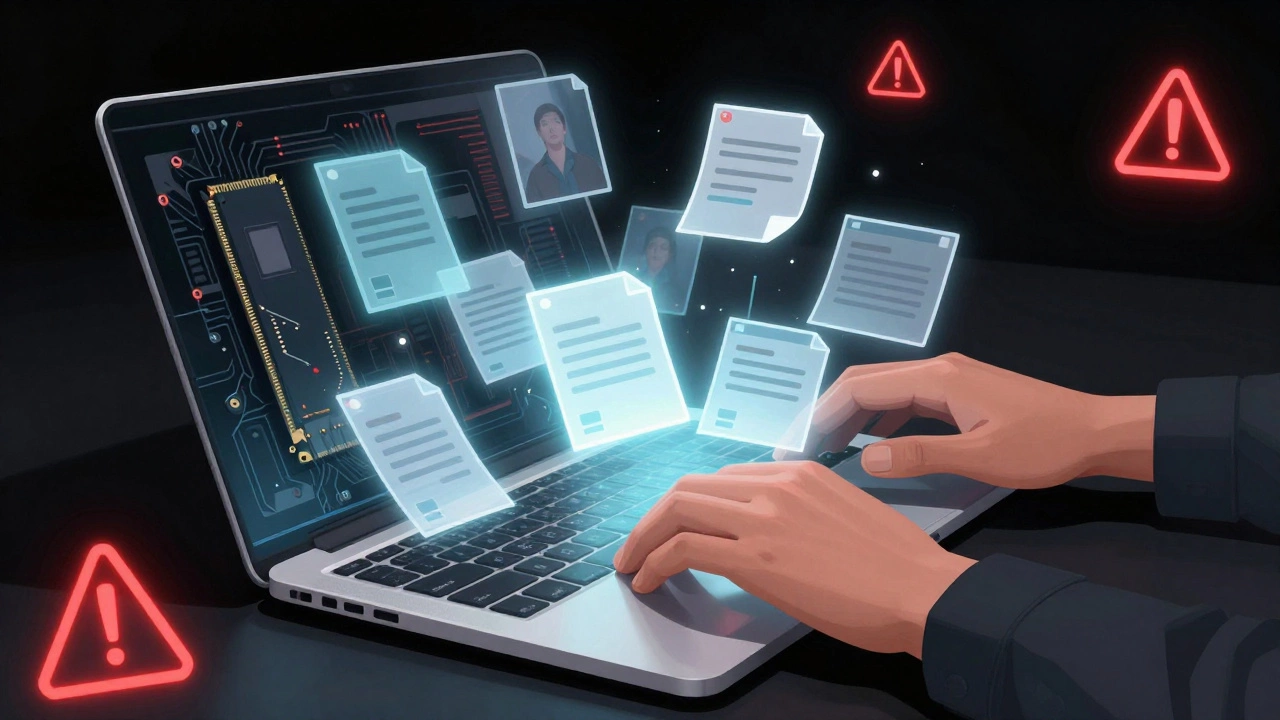
When you hand over your laptop, you’re giving someone physical access to your hard drive or SSD. That’s not just the operating system. That’s your entire digital life. Most shops will need to boot the machine, check for errors, run diagnostics. To do that, they have to access your files-even if they say they won’t look.
Here’s the reality: many technicians aren’t trained in data privacy. They’re trained to fix screens, batteries, and keyboards. Some shops don’t have policies. Some don’t even have locked drawers for devices. I’ve seen techs leave laptops open on counters while they grab coffee. I’ve seen them use the same cleaning wipes on 10 different machines without wiping the screen first. That’s not negligence-it’s normal in small shops.
And yes, some technicians do look. Not because they’re evil, but because they’re curious. They see a folder named “Tax 2025” or “Password Backup” and they click. They don’t steal. They just browse. And that’s enough to violate your privacy.
When It’s Worth the Risk
Not every repair is risky. If your laptop’s charging port is loose, the screen is cracked, or the fan is screaming like a banshee-those are hardware issues. The technician doesn’t need to touch your files. In those cases, the risk is low. But even then, you’re still handing over a device that contains your data.
Here’s what’s actually safe to take in:
- Broken hinges or bezels
- Dead or overheating fans
- Loose or damaged charging ports
- Keyboard keys that don’t respond
- Screen flickering or backlight failure
These repairs usually involve opening the case, replacing a component, and reassembling. No need to log into Windows or macOS. No need to touch your user profile.
But if your laptop won’t boot, crashes at startup, has a corrupted OS, or you’re told “it’s a software issue”-that’s a red flag. That means they’ll need to access your files. That’s when you need to take extra steps.
How to Protect Your Data Before You Go
You don’t have to live in fear. You just need to be prepared. Here’s what you should do before walking into any repair shop:
- Back up everything. Use an external drive or cloud service. Google Drive, iCloud, or OneDrive. Don’t rely on “I’ll just copy it later.” Do it now. If the drive fails during repair, you’re out of luck.
- Create a temporary admin account. On Windows, go to Settings > Accounts > Family & other users > Add account. Make it an administrator. On macOS, go to System Settings > Users & Groups > Click the lock > + > Create admin account. Name it “Repair” or “Temp.” Log into that account when you drop off the laptop. The technician can fix the machine without ever seeing your personal files.
- Log out of everything. Sign out of your email, banking apps, social media, and any cloud services. Don’t just lock the screen. Log out. Session cookies can be exploited.
- Disable automatic login. On Windows, press Ctrl+Shift+Esc, go to Startup, and disable any apps that auto-launch. On macOS, go to System Settings > Login Items and remove everything except essential services.
- Remove external drives and SD cards. Don’t assume they’ll notice. If you have a microSD card with vacation photos or a USB stick with work files, take them out.
These steps take 15 minutes. That’s less time than it takes to wait in line at the shop. But it’s the difference between walking out with a fixed laptop-and walking out with a stolen identity.
Choosing the Right Repair Shop
Not all repair shops are the same. A guy in a garage with a toolbox and a YouTube tutorial is not the same as a certified technician at a branded service center.
Look for these signs of legitimacy:
- They’re authorized by the brand (Dell, Apple, Lenovo, HP). Authorized shops get real parts, training, and software access.
- They have a physical storefront, not just a Facebook page.
- They ask for ID before accepting your device. Legit shops log devices to prevent fraud.
- They offer a written estimate and repair warranty. No estimate? Walk away.
- They have reviews on Google or Trustpilot-not just five-star testimonials on their own website.
Avoid shops that:
- Ask for your password to “test” the laptop
- Don’t offer a receipt or repair log
- Use phrases like “We’ll just take a quick look”
- Have no privacy policy posted
Apple and Dell have official repair centers. If you have a premium laptop, go there. They have secure workflows, encrypted workstations, and technicians trained in data handling. It costs more-but you’re paying for trust.
What to Do After You Get Your Laptop Back
Getting your laptop back isn’t the end. It’s the start of your safety check.
- Check for new apps. Open your Apps list. Look for anything you didn’t install. A weird antivirus tool? A browser extension you don’t recognize? That’s a red flag.
- Review login activity. Check your email for password reset emails you didn’t request. Google and Microsoft let you see recent logins. If you see a location you don’t recognize, change your password immediately.
- Run a malware scan. Use Windows Defender or Malwarebytes. Even if the shop didn’t steal anything, they might have accidentally installed a driver that came bundled with malware.
- Log back into your accounts. Use your main account again. Don’t just switch back. Log out of the temporary account and delete it.
One person I spoke to in Wellington found a hidden remote access tool on their laptop after a screen repair. The technician had installed TeamViewer without telling them. They didn’t steal data-but they could have. That’s why you check.

When to DIY Instead
Not every problem needs a shop. If you’re comfortable with a screwdriver, you can fix a lot yourself.
Here are common fixes you can do at home:
- Replacing a battery (most laptops have user-accessible panels)
- Upgrading RAM or SSD (check iFixit guides for your model)
- Cleaning dust from fans with compressed air
- Reapplying thermal paste (if you’re patient and have a small tube)
YouTube has step-by-step videos for almost every laptop model. iFixit.com has teardown guides with part numbers. You can buy genuine parts online for less than a repair shop charges for labor.
DIY isn’t for everyone. But if you’ve ever changed a phone screen or assembled furniture, you can handle a laptop upgrade. And you’ll know exactly what happened to your device.
Final Answer: Is It Safe?
Yes, it can be safe-if you take control.
Don’t assume the shop has your best interests at heart. Don’t assume they’re trained in data security. Don’t assume your files are safe just because they say so.
Take the steps. Back up. Create a temp account. Choose a reputable shop. Check after you get it back. You’re not being paranoid. You’re being responsible.
Your laptop is more than a tool. It’s your memory, your income, your identity. Treat it like it matters. Because it does.
Can a repair shop see my files even if I don’t give them my password?
Yes. If your laptop boots normally, a technician can access your files without your password by booting from a USB drive or using admin tools. They don’t need your login-they just need physical access and basic technical skills. That’s why creating a temporary account is so important.
Should I wipe my laptop before taking it in?
Only if you’re okay losing everything. Wiping your drive means you’ll lose your apps, settings, and files unless you have a full backup. Instead, create a temporary account. It’s faster, safer, and preserves your data.
Are authorized repair centers safer than local shops?
Generally, yes. Authorized centers like Apple or Dell Service Centers follow strict data handling protocols. They use encrypted workstations, log every device, and train technicians on privacy. Local shops vary widely-some are great, but many aren’t trained in data security.
What if the shop says they need my password to fix it?
That’s a red flag. No legitimate repair needs your personal password. If they say they need it to “test the fix,” ask them to use a temporary account instead. If they refuse, walk out. There are other shops.
Can a repair shop install spyware on my laptop?
Technically, yes-but it’s rare. Most technicians don’t have the skills or motive. But it’s possible, especially if you hand over your laptop without protection. That’s why checking for new software after repair is critical. Always scan for malware and review login activity.
I am an expert in the services industry with a focus on appliance repair. My passion lies in understanding how things work and educating others in simple, engaging ways. This enthusiasm fuels my writing, where I delve into topics around appliance maintenance and troubleshooting. I aim to make these subjects clear and accessible to all readers.